
Upcoming for iPhone and iPad
Corners
A photo album you fill by hand.
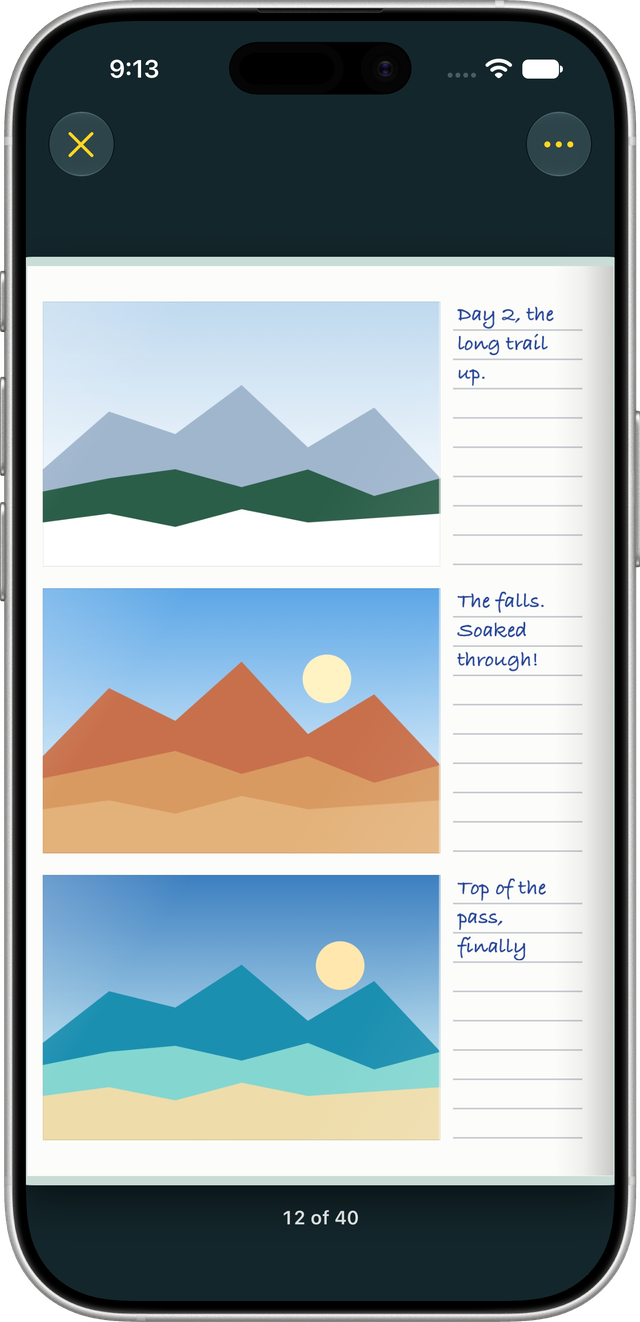
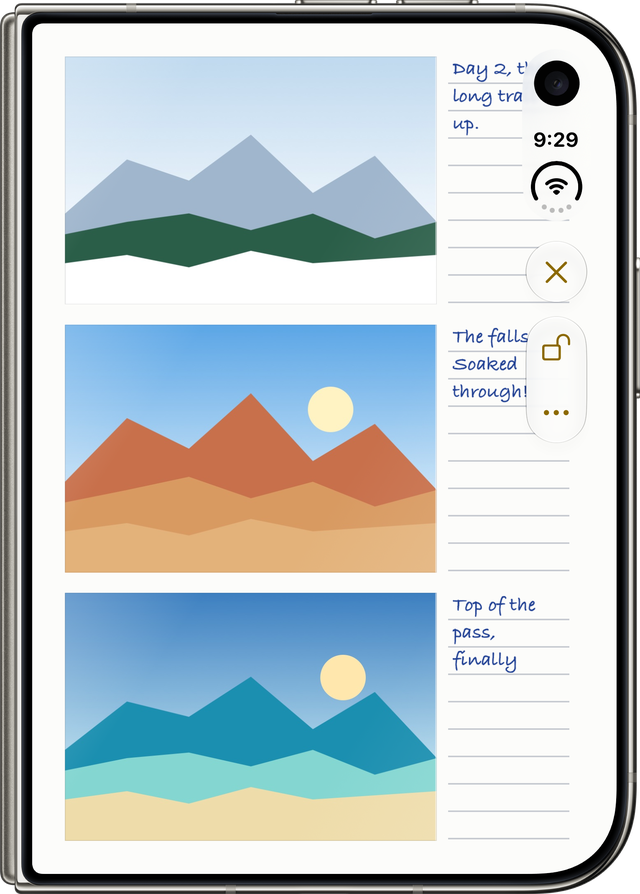
Make an album, choose its cover, and put your photos in one at a time. Each photo slides into a clear pocket and stays where you put it, with lines beside it for a note.
For iPhone and iPad, and designed around iPhone Duo. Free for three albums, with an optional Corners Pro upgrade. Coming to the App Store.
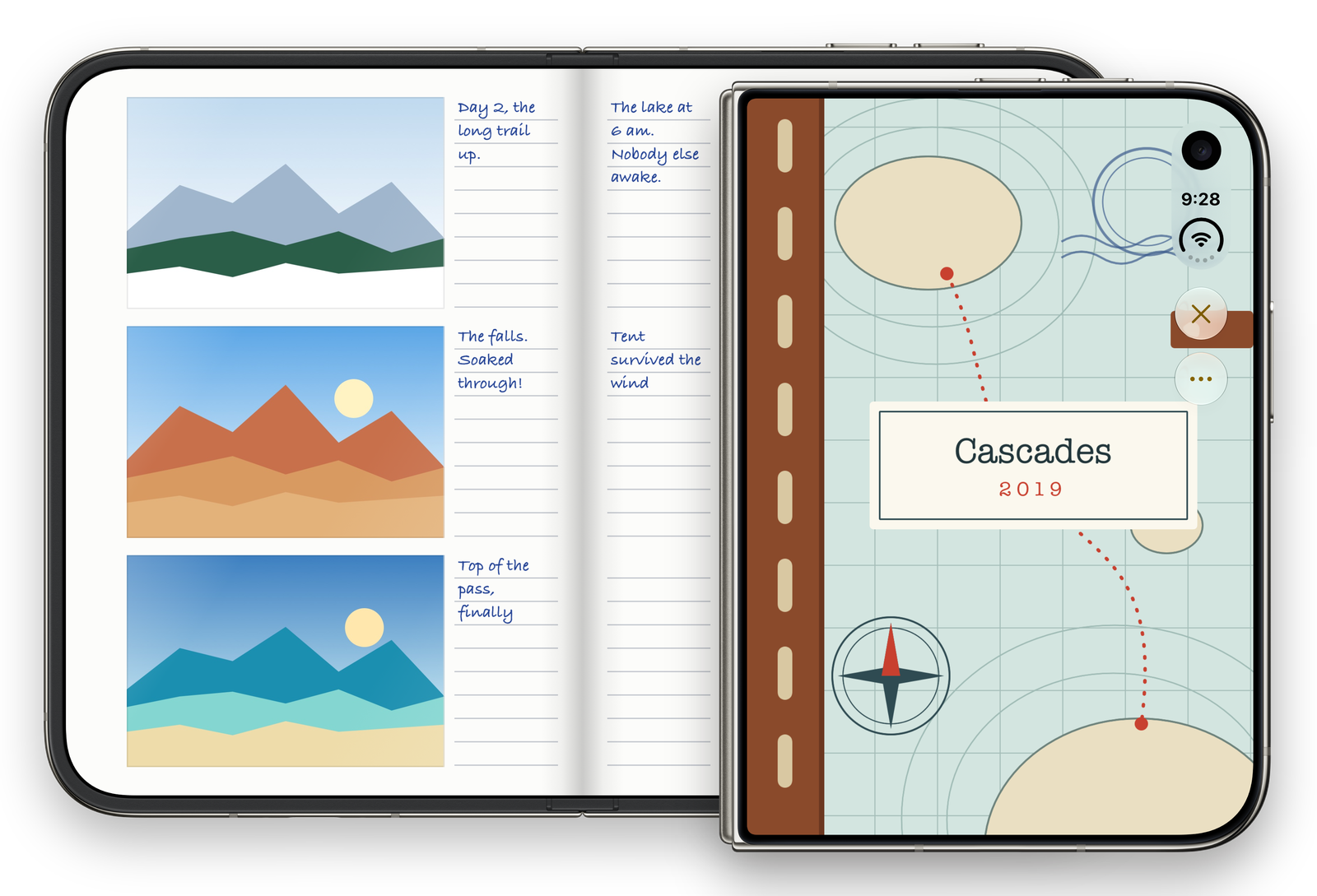
An album, the way a printed one works.
You fill it by hand
Photos go in one at a time. You choose each one and the pocket it goes into.
Photos keep their place
Where you put a photo is where it stays. Nothing sorts or reshuffles itself.
Writing belongs to the page
Lines beside each pocket take a typed note or your handwriting.
The album keeps its own copy
Like a print, each photo in an album is the album’s own. Deleting the photo from your Photos library doesn’t remove it from the album.
Opening the phone opens the book
On iPhone Duo you see two pages, with the fold as the spine. On other iPhones and on iPad you see one page upright, or two in landscape.
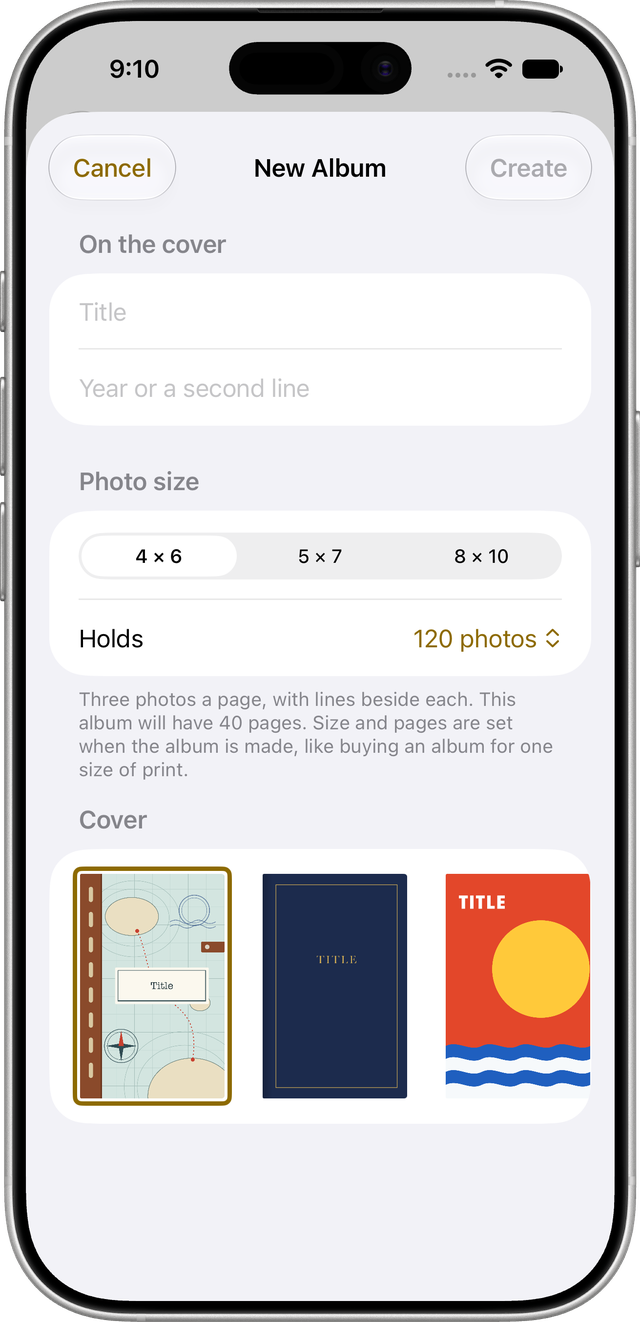
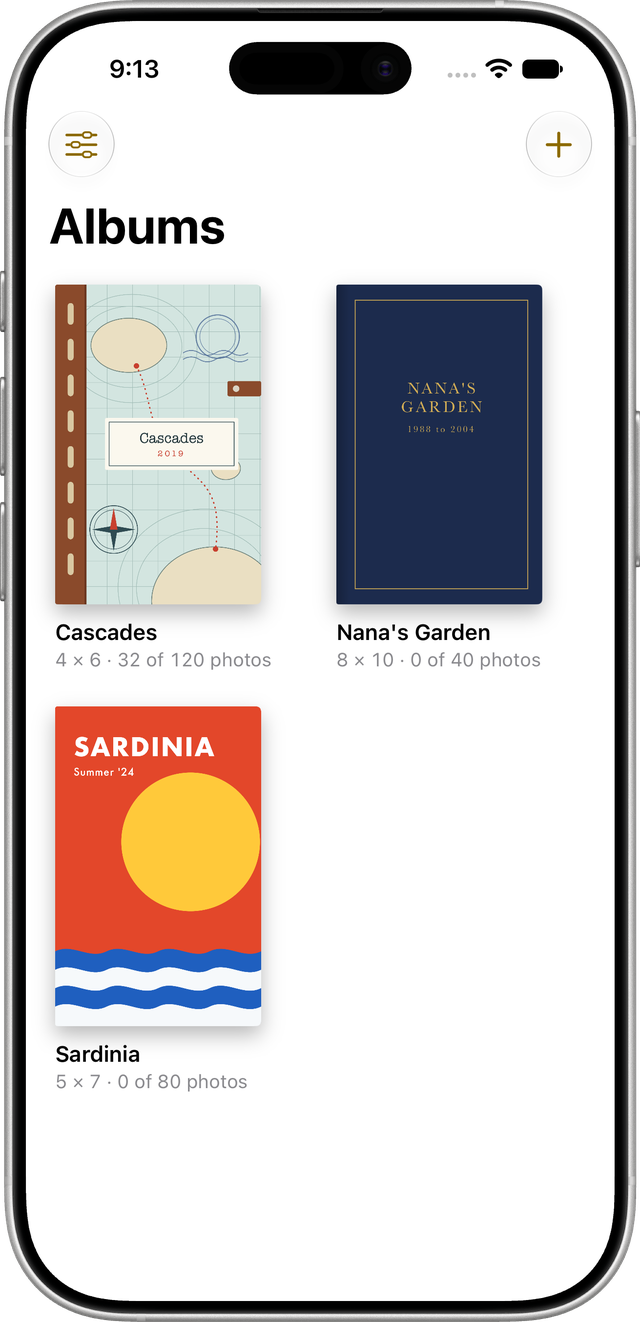
1Make an album
Start a new album from the shelf. Give it a title for its cover, then choose three things.
- Cover
- The design on the front of the book.
- Photo size
- The size of photo the album holds: 4 × 6, 5 × 7 or 8 × 10.
- Holds
- How many photos the album holds.
You can change the cover later from the ⋯ menu, with Change Cover.
2Put a photo in
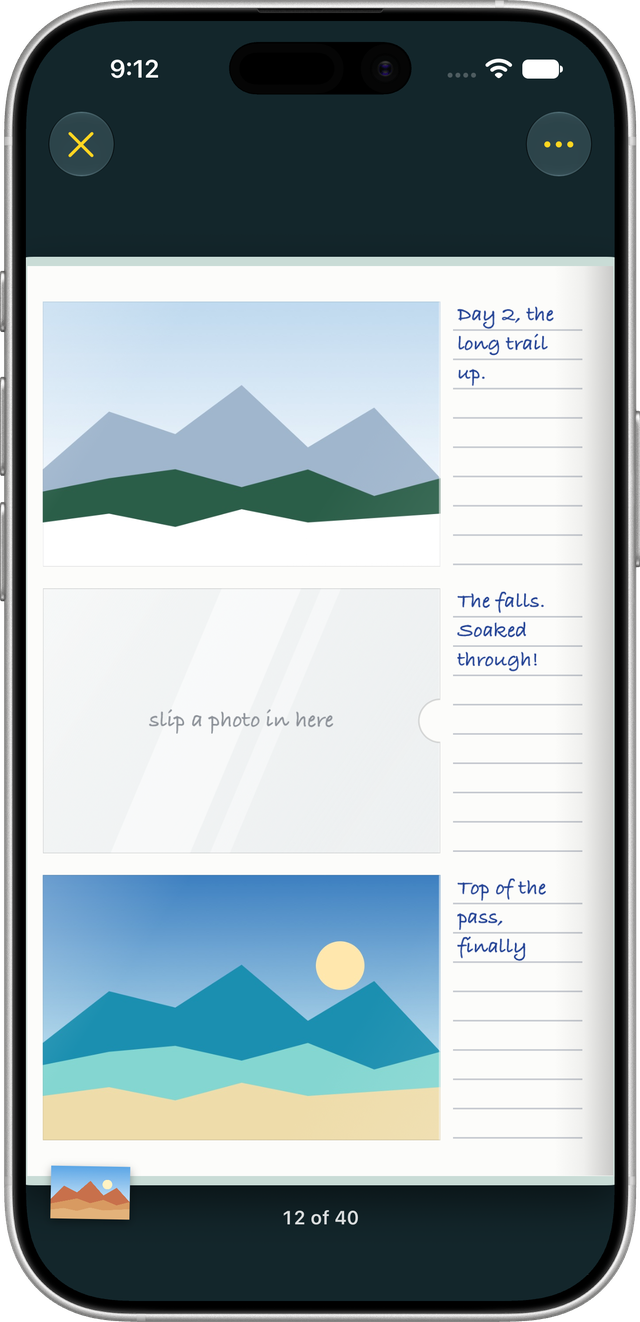
Tap an empty pocket and pick a photo. Each pocket is a clear sleeve, open on the side by the spine. The photo slides in sideways, under the film.
- One at a time. You place each photo yourself.
- Turned to fit. An upright photo is turned on its side to fit a wide pocket, as a print would be.
- Only the photos you pick. Corners uses the system photo picker and receives just the photos you choose. It doesn’t ask for access to your whole library.
3Write beside it
The lines beside each pocket are for a note: a date, a place, who is in the picture.
- Type it. Tap the lines and type.
- Or write by hand. Tap the lines, then Write by Hand. Use Apple Pencil on iPhone Duo, or a finger.
4Turn the pages, look closer
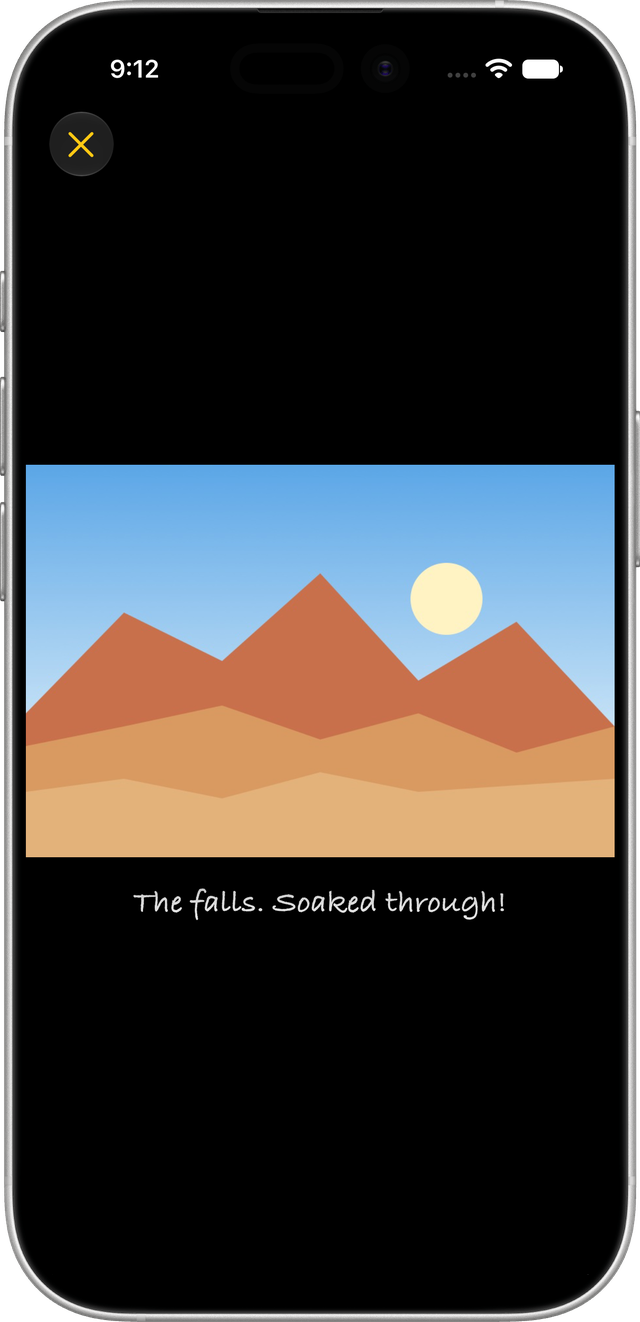
Pages turn like leaves. Tap a photo to slide it out of its pocket and look at it large, with its note underneath.
5Take a photo out
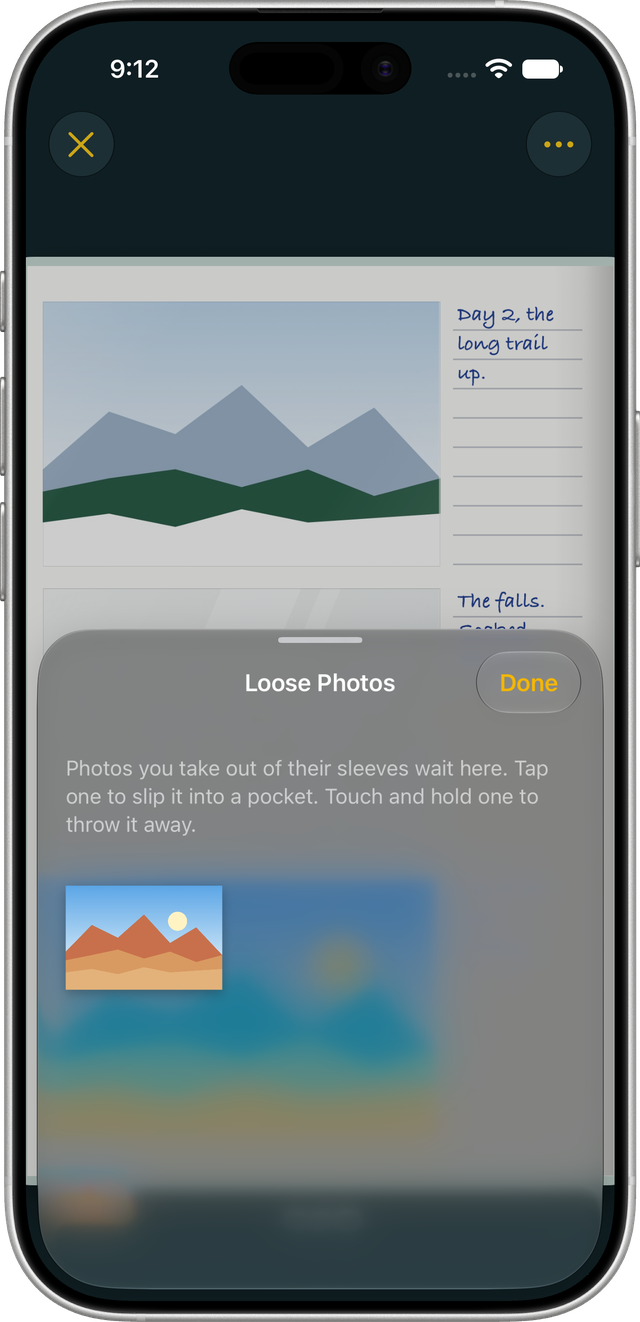
Touch and hold a photo, then choose Take Out of the Sleeve. It goes onto the pile of loose photos in the corner.
Tap the pile to put a photo back into a pocket, or to throw it away.
6On iPhone Duo
- Open the phone, open the book. Two pages, with the fold as the spine.
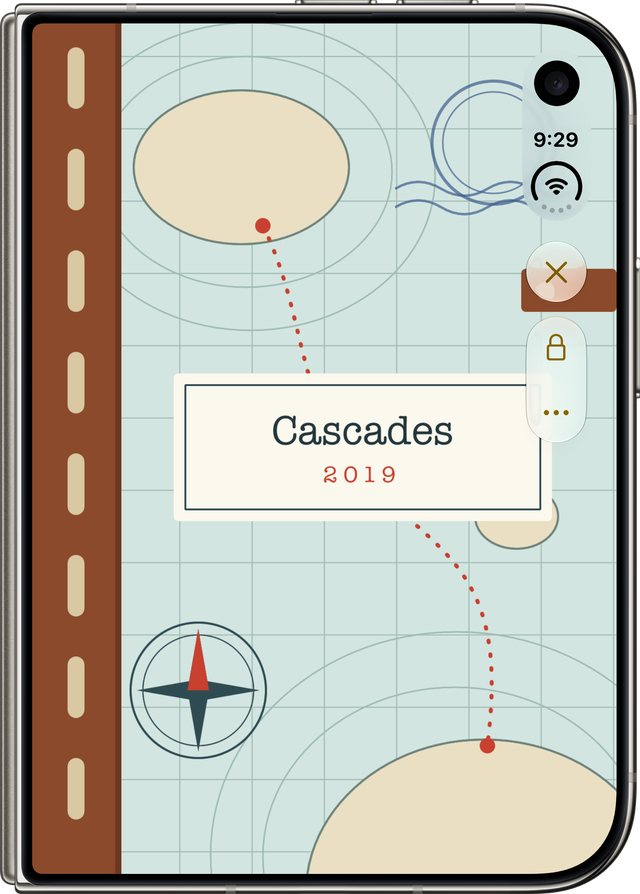
- Closed, it shows the cover. In Settings you can choose whether the closed phone shows the album’s cover or the page.
- A lock in the side bar unlocks the cover on the closed phone. Then you turn it open yourself, and the pages after it.
Corners doesn’t need iPhone Duo. Everything works on other iPhones and on iPad: one page upright, or two in landscape.
7Corners Pro
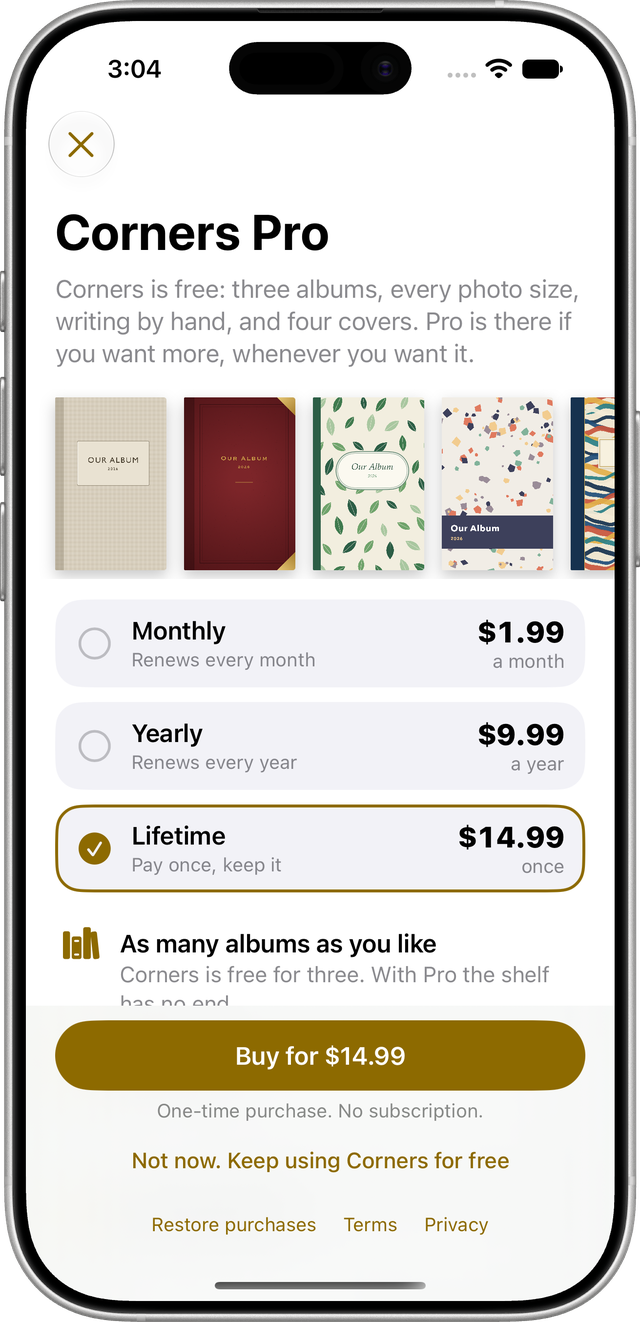
Corners is free for three albums, every photo size, typed and handwritten notes, and four covers.
Corners Pro adds:
- As many albums as you like.
- Big albums that hold 300 photos.
- 12 more covers, 16 in all.
Corners Pro comes three ways, and all three unlock the same thing: US$1.99 a month, US$9.99 a year, or US$14.99 once. Monthly and yearly are subscriptions that renew until you cancel them in your Apple Account settings. The one-time purchase never renews.
Albums and photos you already have are never locked.
8What stays private
- No account. No ads. There is nothing to sign in to, and no tracking across apps.
- Albums stay on your device. Photos, notes and handwriting are stored only on the device. This version has no server of mine and no iCloud sync.
- Purchases go through Apple. RevenueCat keeps anonymous purchase records for Corners Pro: no name, no email, no advertising identifier.
What you need
An iPhone with iOS 26 or later, or an iPad with iPadOS 26 or later. Corners is designed around iPhone Duo and works fully on other iPhones and on iPad.
Corners isn’t on the App Store yet, and details may change before release. Screens are simulator captures of sample albums, shown in device frames; the pictures in them are drawings.
Questions?
The support page has short answers about photos, notes, covers and Corners Pro, or you can email me.